 I-COST
Purchase order system for construction
A purchase order systembuilt for construction.
Raise purchase orders from the estimate or the winning quote, track each order from sent to delivered and invoiced, and see the committed cost against the budget the moment it is sent.
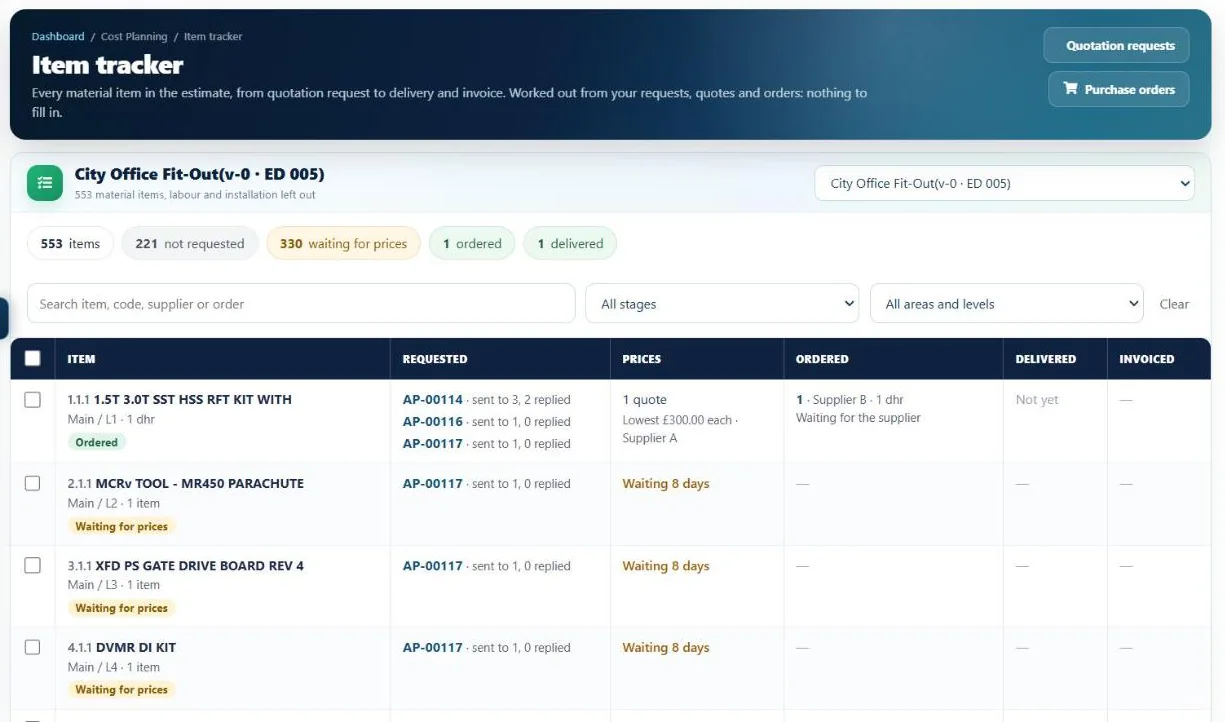
The problem
A PO template
isn't a purchase order system.
Orders typed into Word or Excel templates don't know the budget, the deliveries or the invoices, so committed cost is a guess.

Orders are typed into a template, then emailed and forgotten.
Orders come from the estimate or the quote, are saved as drafts, then sent from I-Cost.
Nobody checks an order against the budget.
Sent orders count against the approved budget straight away, by area and cost type.
Deliveries arrive short or damaged and nobody records it.
Site confirms what arrived, and anything short or damaged is sent back to the supplier.
Invoices are paid against orders nobody can find.
Goods received, invoices and credit notes sit on the order.
You don't know when the order will turn up.
Suppliers accept, process and dispatch in the portal, and you see each step.
Month-end accruals take a day.
Received-not-invoiced value is worked out for you.
In I-Cost
From order
to invoice.
Every purchase order keeps its revisions, its delivery progress and its paperwork. Suppliers accept the order and record each dispatch with a QR delivery note; your team scans it, confirms what arrived and flags anything short or damaged. Goods received, invoices and credit notes all count towards the committed and incurred cost in the report.
- Orders from the estimate or the quote
- Drafts, then send to the supplier
- Printed PO and PDF
- Revision history
- Order progress from the supplier
- QR delivery notes
- Goods received and accruals
- Credit notes and closing orders
Step by step
How a purchase order
runs in I-Cost.
Raise
From the estimate items or the winning quote, with delivery date and address.
Send
Save as a draft, check it, then send it to the supplier by email and portal.
Track
The supplier accepts, processes and dispatches, with a QR delivery note.
Receive
Site confirms what arrived; goods received and accruals update.
Invoice and close
Record invoices and credit notes, then close the order.
Template or system
Purchase order template
vs purchase order system.
| Word / Excel template | I-Cost | |
|---|---|---|
| Creating the order | Typed from scratch | From the estimate items or the winning quote |
| Budget | Not checked | Counted against the approved budget when sent |
| Deliveries | Delivery notes in a folder | QR delivery notes, confirmed on site |
| Invoices | Matched by hand | Recorded on the order, with credit notes |
| Committed cost | Worked out at month end | Live in the project report |
Can I still print and email purchase orders?
Yes. Each order prints as a tidy PO document or PDF and is emailed to the supplier, who can also see it in the free portal.
When does an order count as committed?
When it is sent. Drafts don't count, so you can prepare orders without changing the report. Committed cost per order is the order value or the invoices, whichever is higher.
Can I record part deliveries?
Yes. Record what arrived on each line, as many times as needed, or confirm a supplier's dispatch and mark anything short, damaged or wrong.
Do suppliers need an I-Cost account?
They receive the order by email, and can use the free supplier portal to accept it, record dispatches and print QR delivery notes.
More of I-Cost
One platform for the whole job.
Everything below works together, from the same estimate. See the full platform.